Any application at some point faces slow performance issues. It can be due to bad designs, incorrect configurations, or any other reason. Microsoft Dynamics 365 for Finance and Operations is no exception and we have faced many issues & complaints from users about slowness of form/process in the application. To investigate, we generally collect trace and investigate the slow and expensive queries in the Trace parser tool. System Trace can be defined as recording application’s activity over a short period of time. In this article, we will discuss about how to collect the trace and import it in Trace parser.
How to collect Trace in D365 F&O
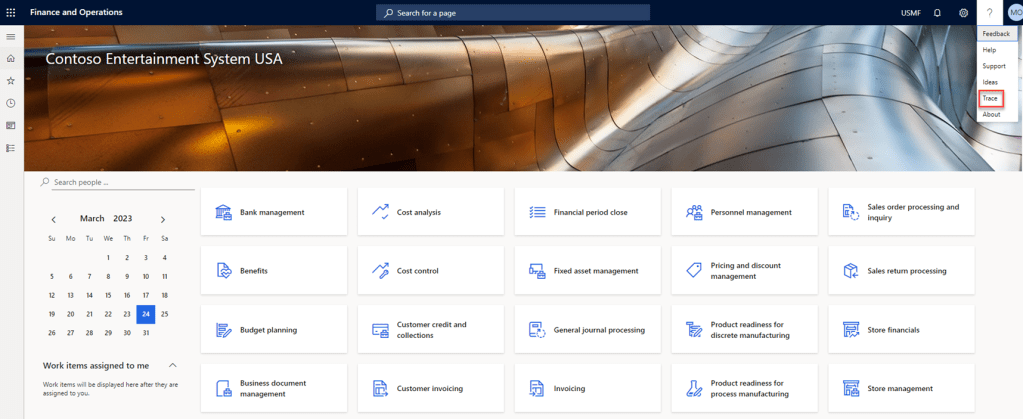
- Go to D365 F&O environment and click on Trace button.
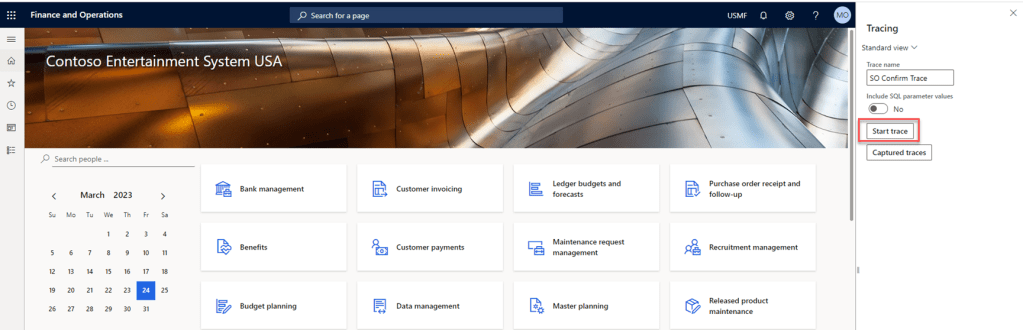
- Fill the Trace name and click on ‘Start Trace’ button.
- Perform operation in D365 F&O. For instance, I have opened sales order form, selected an invoiced sales order, and printed sales order confirmation report.
- After your activity is completed, stop the trace.

Please note that maximum size of trace can be 1024 MB which gets occupied very soon, so you should collect multiple small traces for long processes.
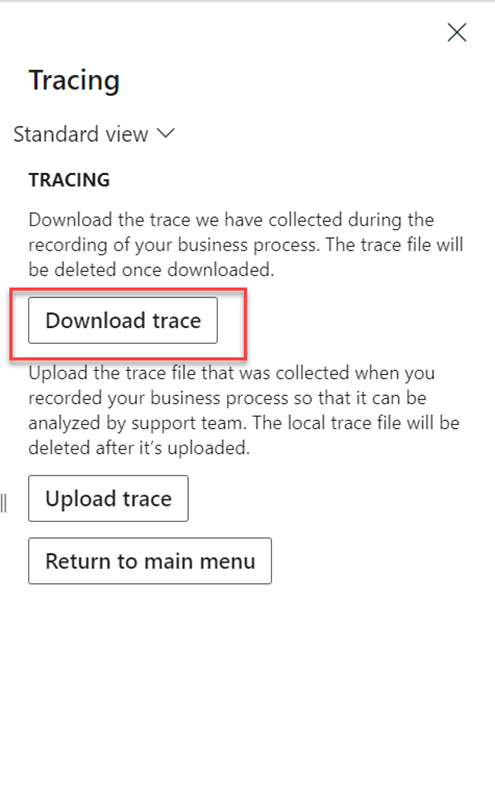
- After the trace is stopped, download it.
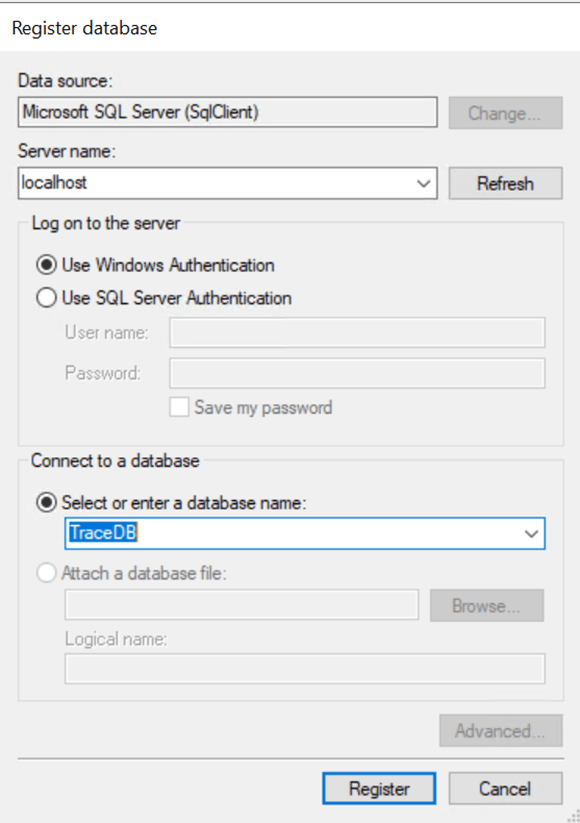
- Go to your Development environment and open Trace Parser.

- Create new Database for Trace and click Register.
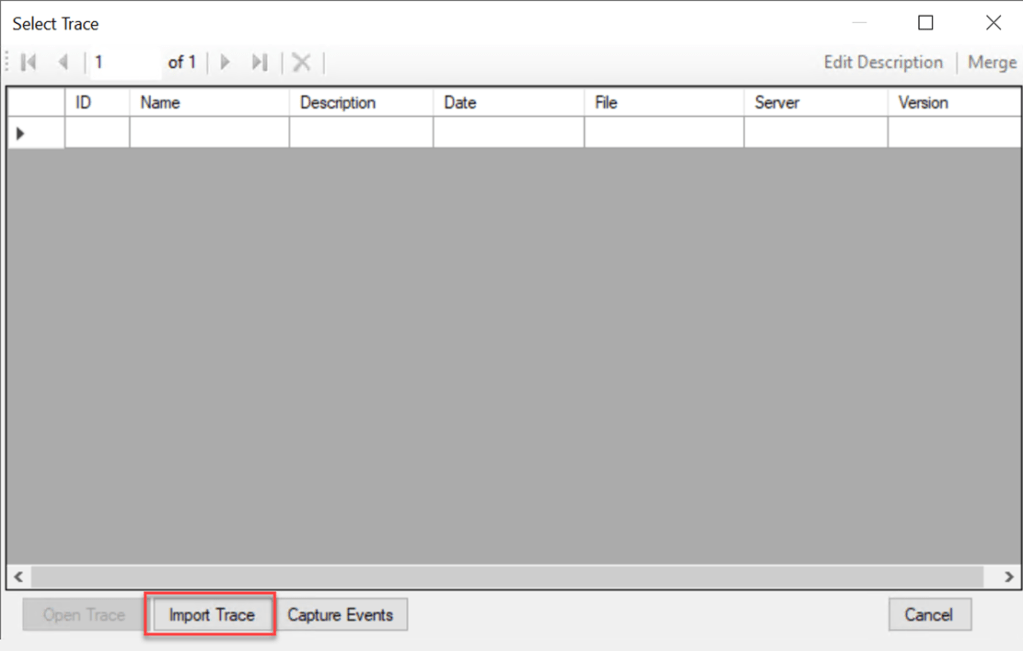
- Import the Trace
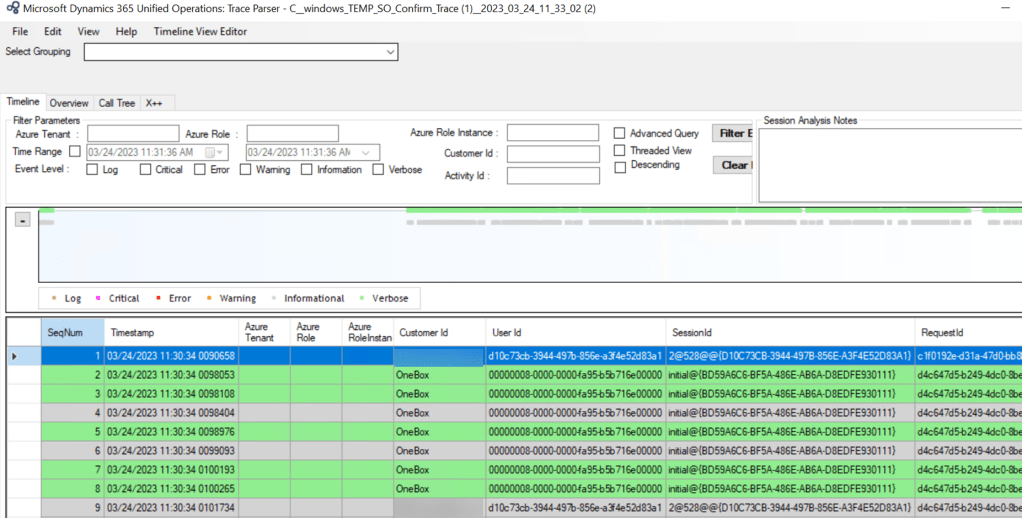
- You can investigate the trace now.
 MOHIT RAMPAL - DYNAMICS 365 F&O BLOG