Have you ever investigated an issue and found out that that root cause was an incorrect configuration or invalid business data. These issues can be handled or avoided by Optimization Advisor workspace.
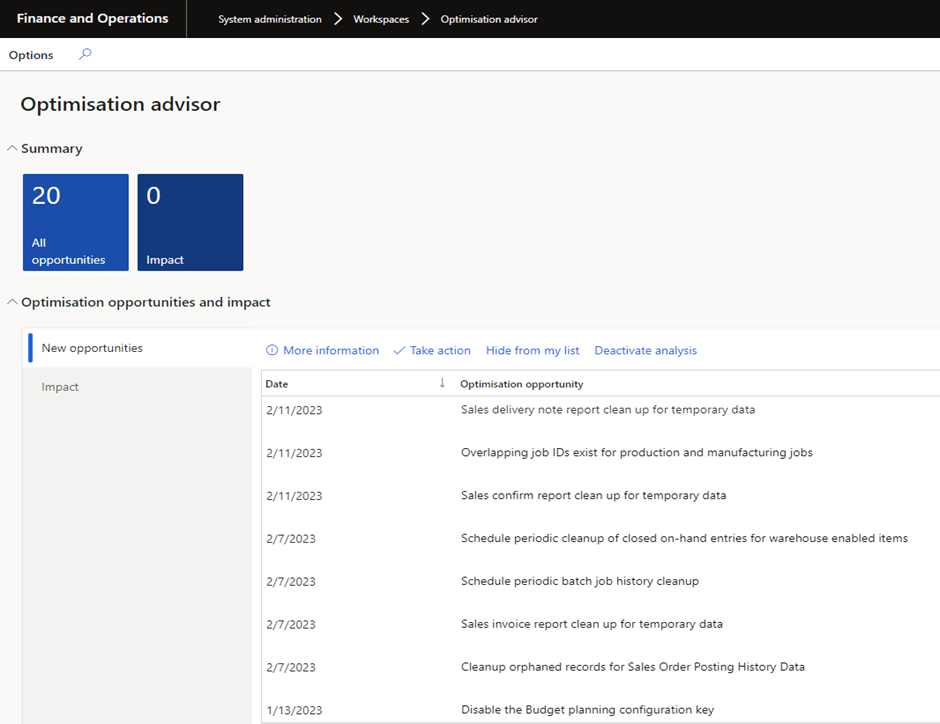
The Optimization advisor is an out of the box workspace that lets power users, business analysts, functional consultants, and IT support functions identify issues in module configuration and business data. This workspace allows you to view system metrics, analyse trends, and drill down to individual transactions to identify specific areas for improvement.
Optimization advisor suggests best practices for module configuration and identifies business data that is obsolete or incorrect. A collection of best practice guidelines is periodically run by optimization adviser. Users can develop rules that are particular to their customizations, solutions from independent software vendors (ISVs), and business data in addition to the basic set of rules that are accessible.
How Optimization Advisor workspace works?
- Analyze business processes
- Find optimization opportunities
- Leverage data composition
- Quantify opportunity
- Recommend solutions
- Improve business goal and performance
System generates an optimization opportunity when violation of rule is detected. User can take action on it from the workspace. When a user takes action, system assesses the impact of the opportunity in terms of the reduction in the runtime of business processes. However, not all optimization opportunities support this feature.
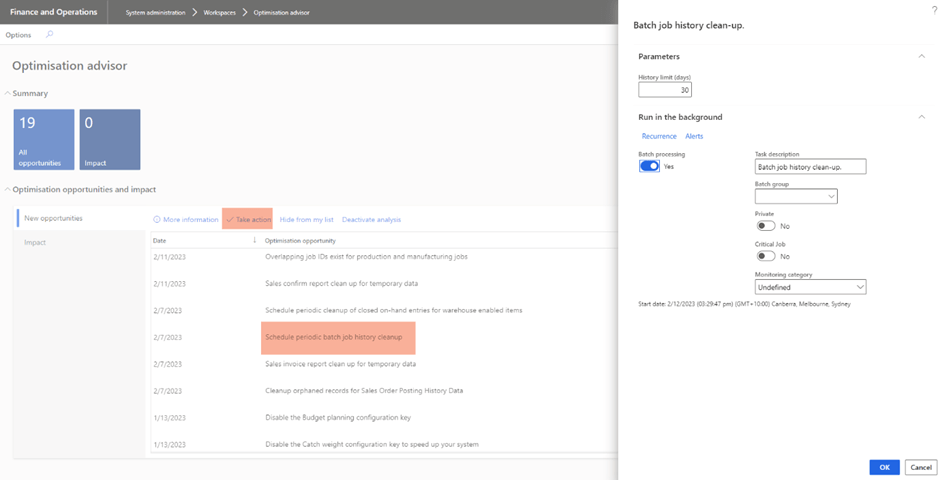
As shown below, when I click on Take Action button for Schedule periodic batch job history clean up, system opened a batch job history clean up dialog.
Optimization rules
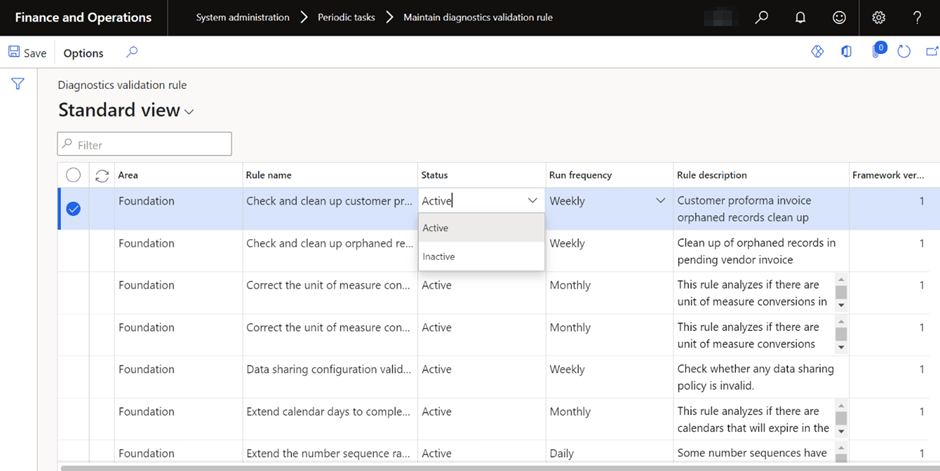
The complete list of Optimization advisor rules can be accessed from System administration > Periodic tasks > Maintain diagnostics validation rule.
You can set the frequency to run a rule and activate or De-activate a rule from this form. Only Active rules are evaluated, and frequency can be set to Daily, Weekly, Monthly, or Unscheduled.
Examples of optimization opportunities
- Disable configuration key as specific functionality controlled by it is not being used in the solution.
- Clean up data such as Batch job history, closed on-hand entries for warehouse enabled items.
- Extend calendar days to complete business tasks
- Correct unit of measurement conversions between units that have not been defined to complete business tasks successfully
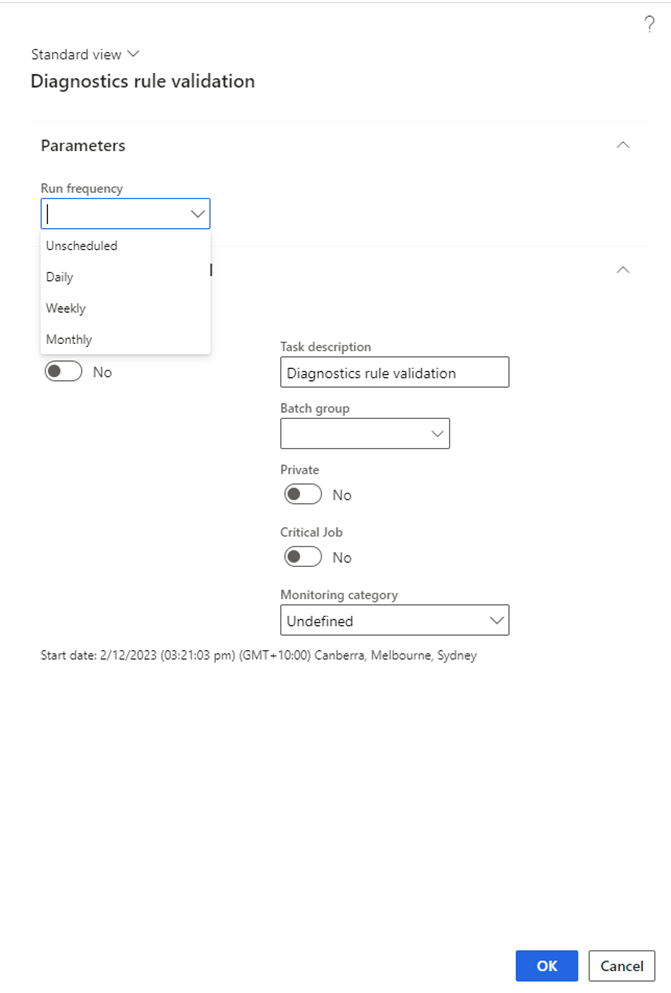
To trigger the evaluation of unscheduled rules, or to re-evaluate periodic rules outside their predefined schedule, go to System administration > Periodic tasks > Schedule diagnostics validation rule. Then, in the Diagnostic rule validation dialog box, select an evaluation frequency. All rules that have the specified frequency will be re-evaluated.
You can create your own rules to check on application data. If the condition is not met, an opportunity will be generated. To understand more on creating rules go to Create rules optimization advisor.
 MOHIT RAMPAL - DYNAMICS 365 F&O BLOG