I have observed many organizations using Microsoft Dynamics 365 for Finance and Operations (D365 F&O) using Microsoft Teams for workplace chat and videoconferencing. Now, this is not mandatory, and you may have noticed some organizations using other applications like Zoom, Slack etc. instead of MS Teams. However, in this article we will go through how D365 F&O can be embedded with Microsoft Teams.
Why should you Embed it?
Embedding D365FO workspaces and forms in MS Teams can help teams across different departments stay connected and collaborate more effectively. It can also help them access and interact with critical business data in real-time, improving decision-making and overall productivity.
How to Embed workspace?
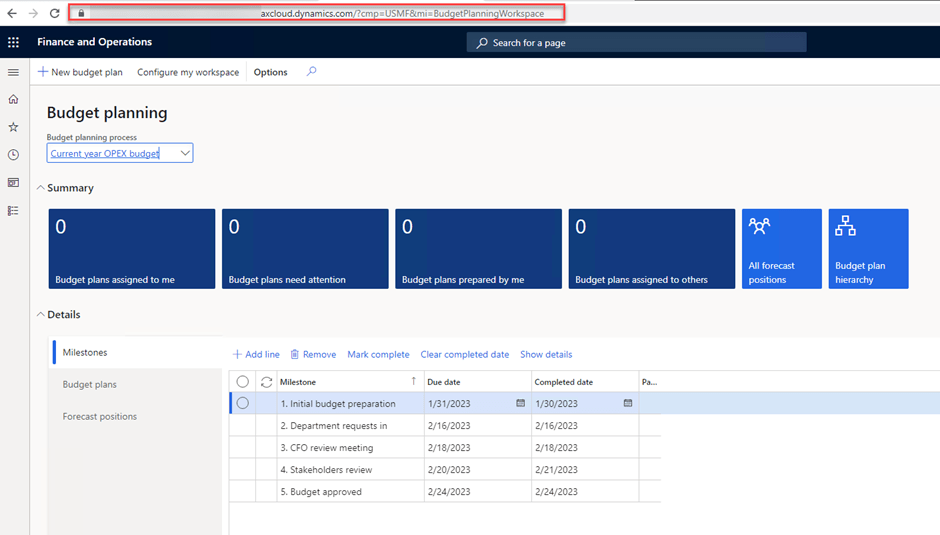
Let’s say I want to embed Budget planning workspace in MS teams.
- In D365FO, Go to Budget Planning workspace and copy the URL.
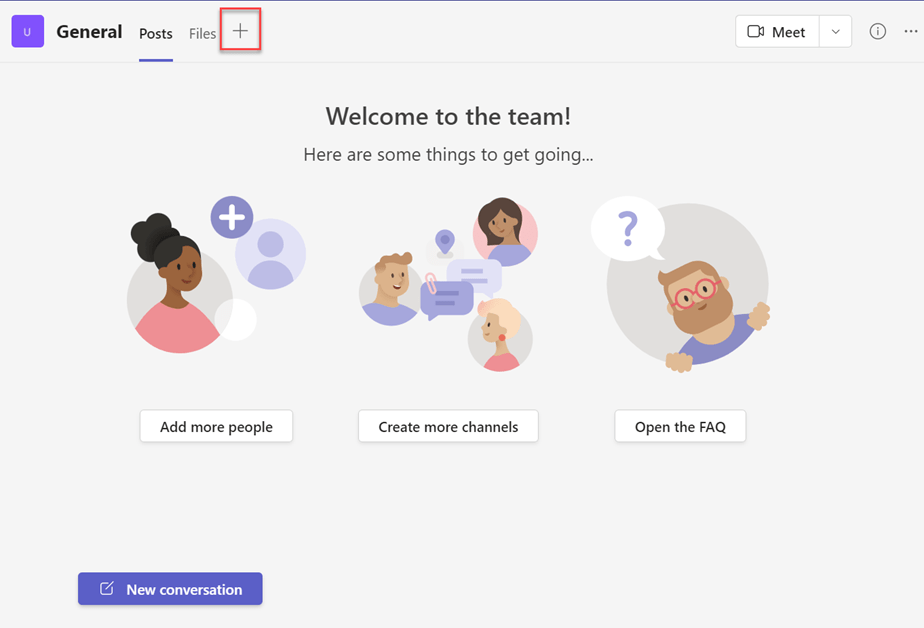
2. Go to you Teams Group in MS team and click on + button to add a tab.
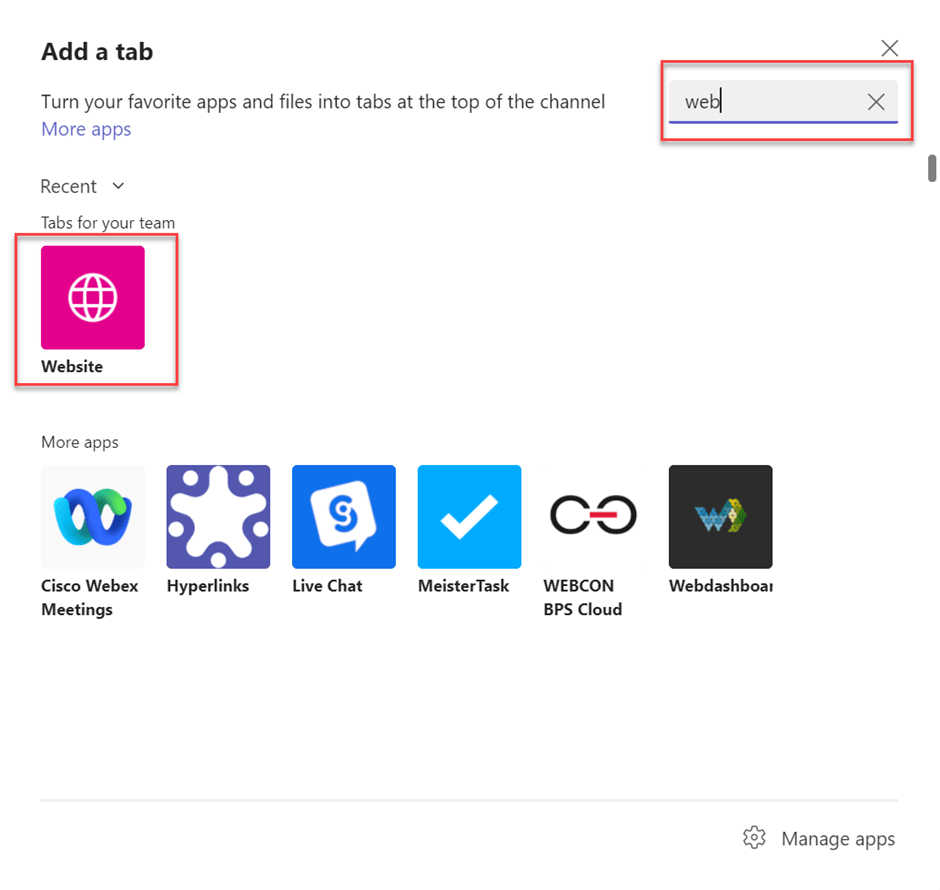
3. Type Website in the search bar and click on Website option.
4. Paste the URL copied in Step1.
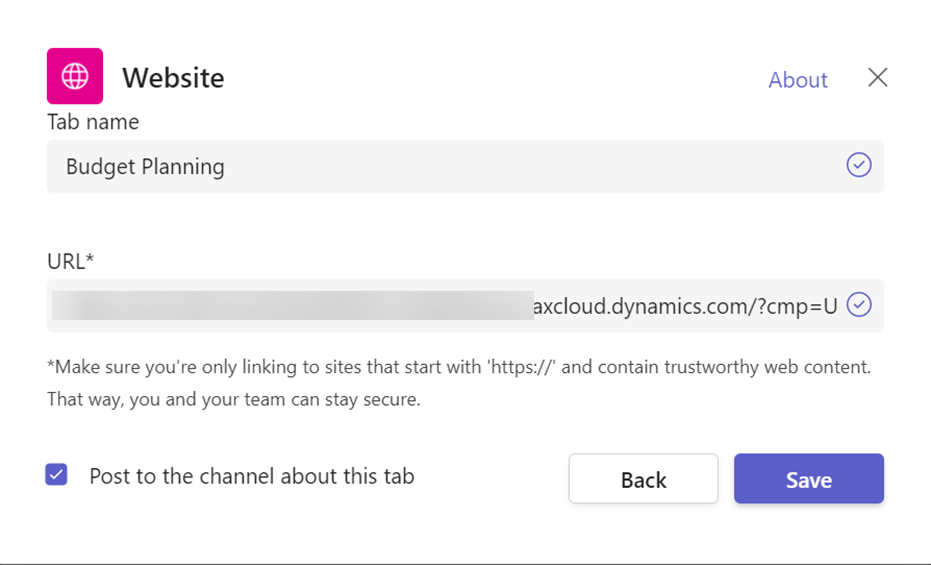
5. Click on Save and you should see the Budget Planning Tab.
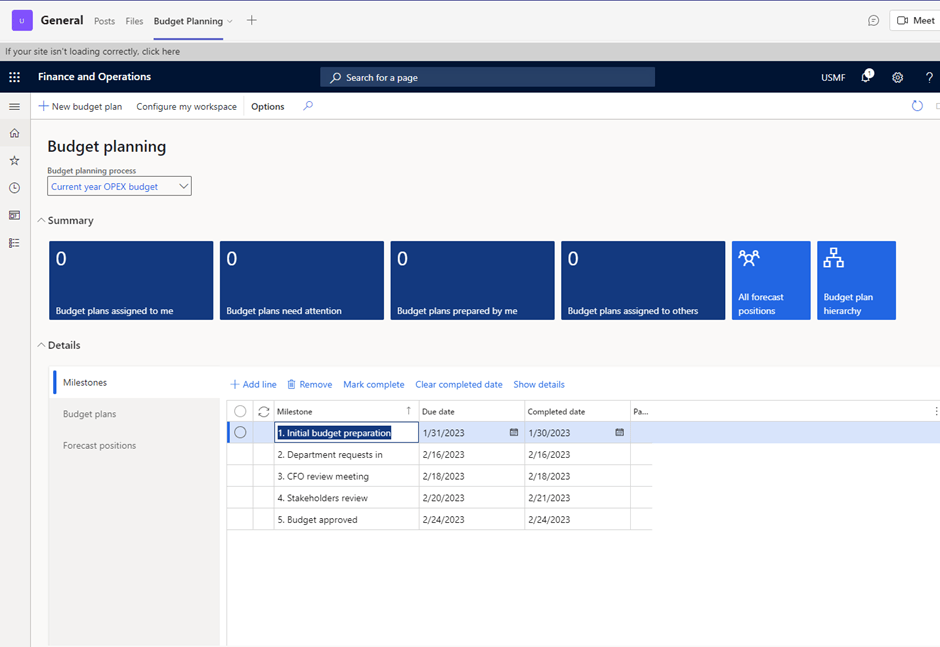
6. Instead of just that workspace, all D365FO application is loaded in the MS Teams group.
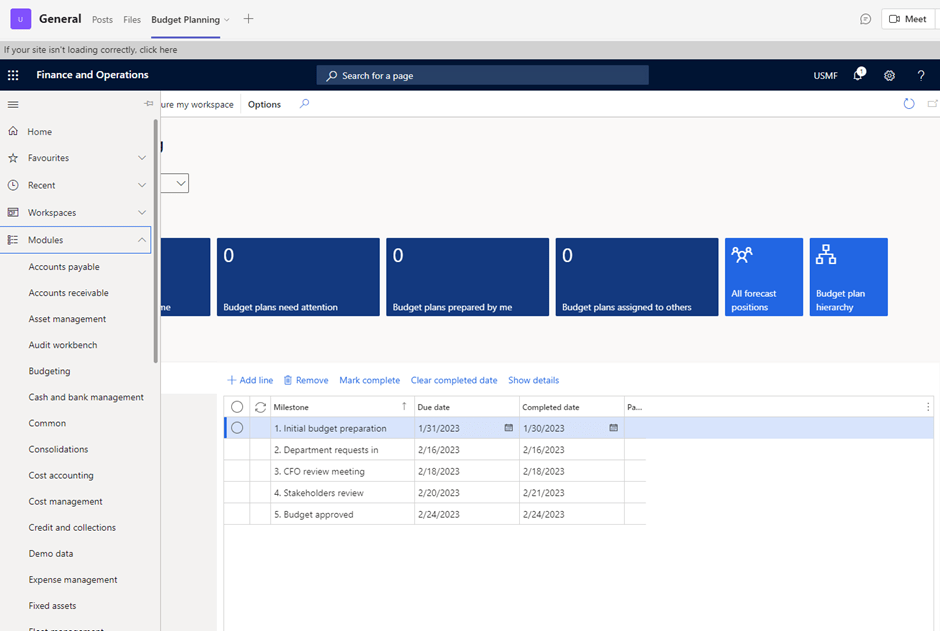
D365 F&O Security still applies, and users can only navigate to forms where they have access. However, the purpose of this activity is not to use D365FO application from Teams but to use a particular form or workspace. This can be fixed in next step.
7. We will add limited navigation parameter in the URL copied in Step 1 and perform Step 4 again.
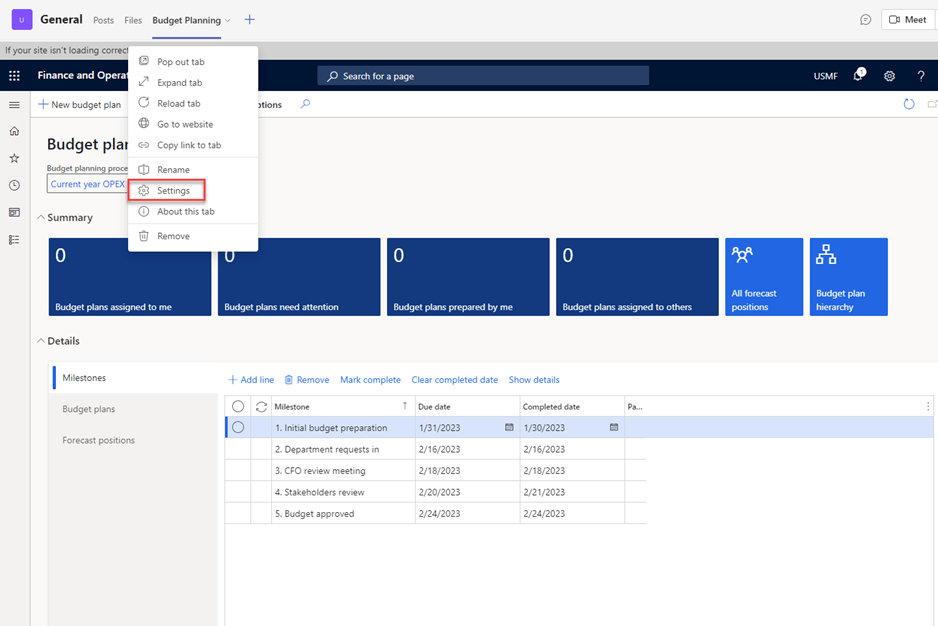
To update URL, click on Settings in the Budget Planning Tab in MS Teams and you will same screen as Step 4.
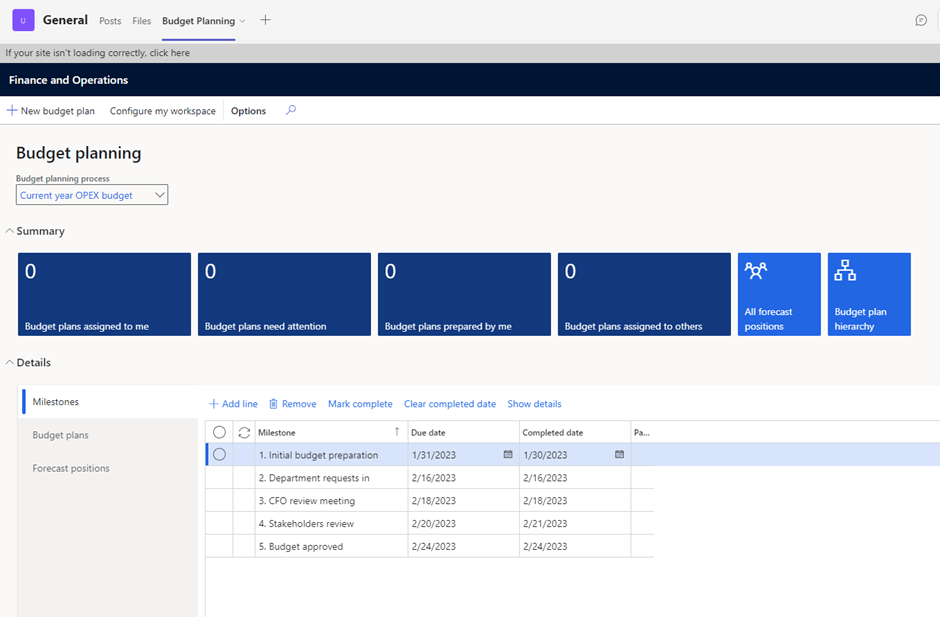
After you update the URL and save, left navigation pane will be removed.
How to Embed D365FO Forms in MS Teams?
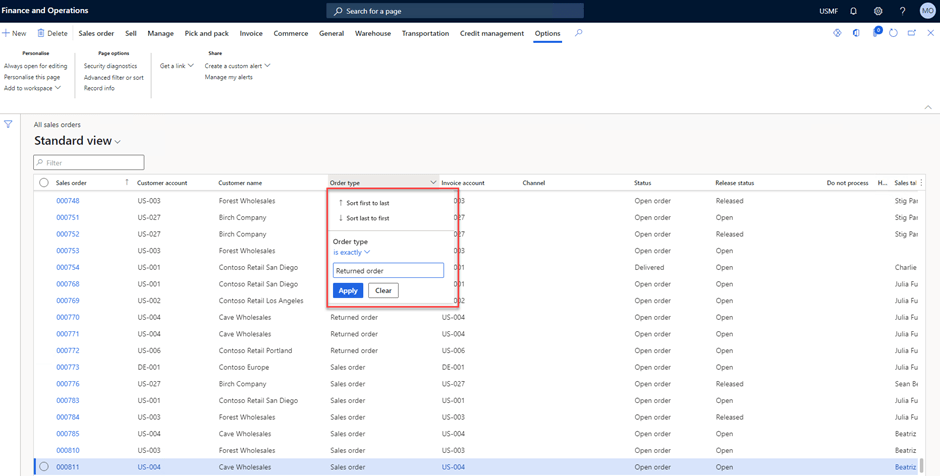
All the steps are same as above if you want to embed a form. However, there can be case when you need to filter records in form first and then embed in MS teams. For instance, the requirement is to view only ‘Returned Sales orders’ in MS teams. This can be done following below steps.
- Go to Sales orders and filter on Order type field for Returned orders.
- Click on Options–>Get a link
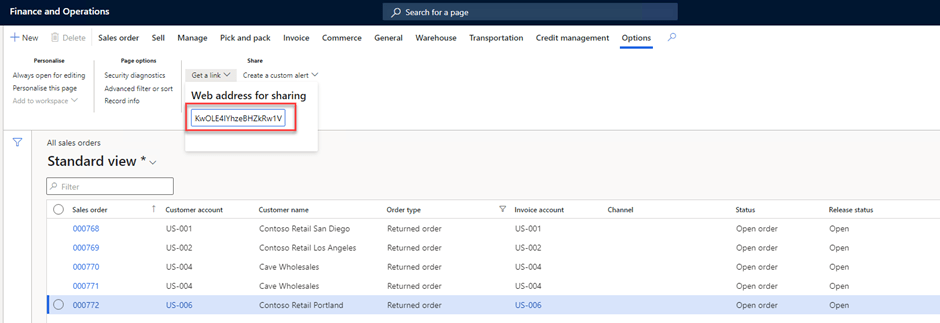
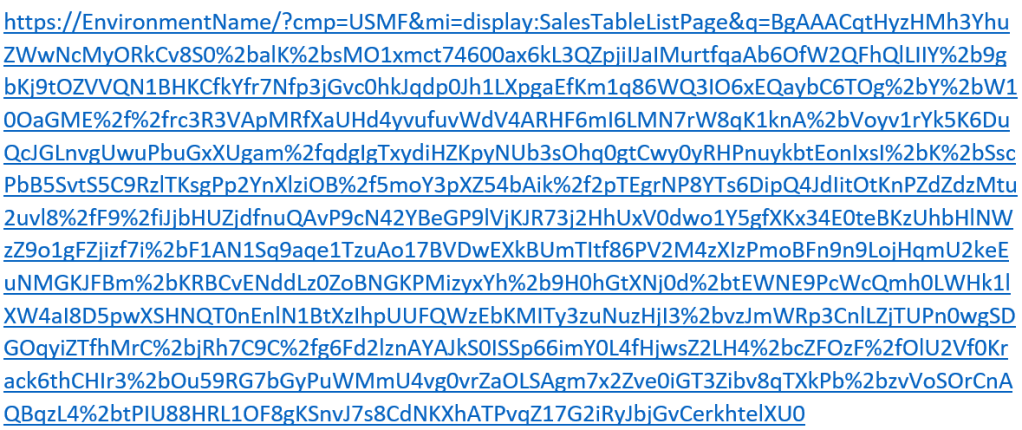
You will get a link like this one
Add limitedNav parameter in the URL and use it in MS Teams as mentioned in above steps.
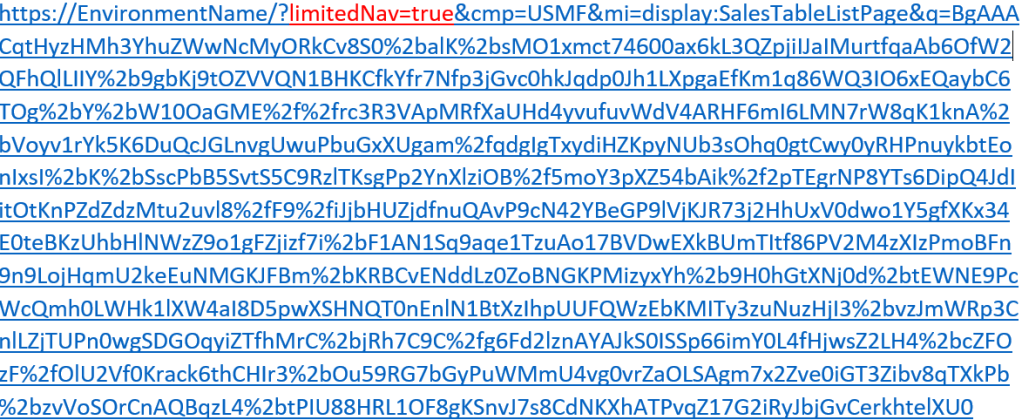
After you add the above URL, MS Teams Group Tab will display only Returned orders from that environment.
Apart from D365 F&O forms and workspace, Power Apps, Power Automate & Power BI can also be embedded in Microsoft Teams.
Keep Exploring, keep Learning!

