Have you ever faced performance issues in D365 F&O cloud hosted environment? If yes, then you will understand the pain to work in a slow development environment. There can be many reasons for performance issues, but inadequate hardware configuration is one the main culprit.
You can find the size of your development environment from Azure Portal, provided you have access to the portal.
To find the size of your development environment
- Go to LCS–>Cloud-hosted environments.
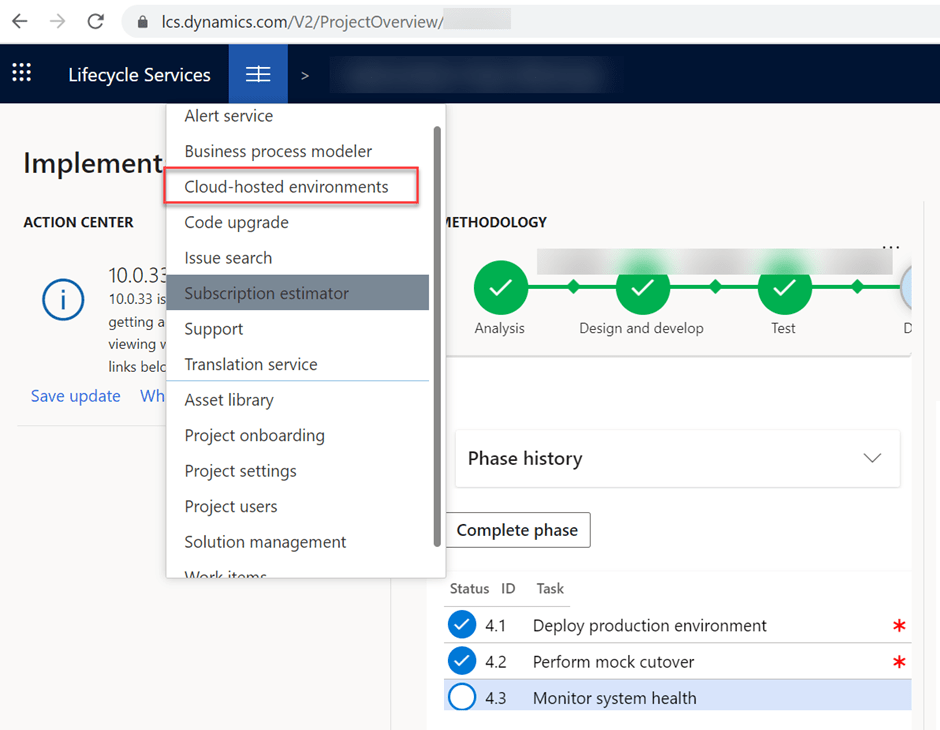
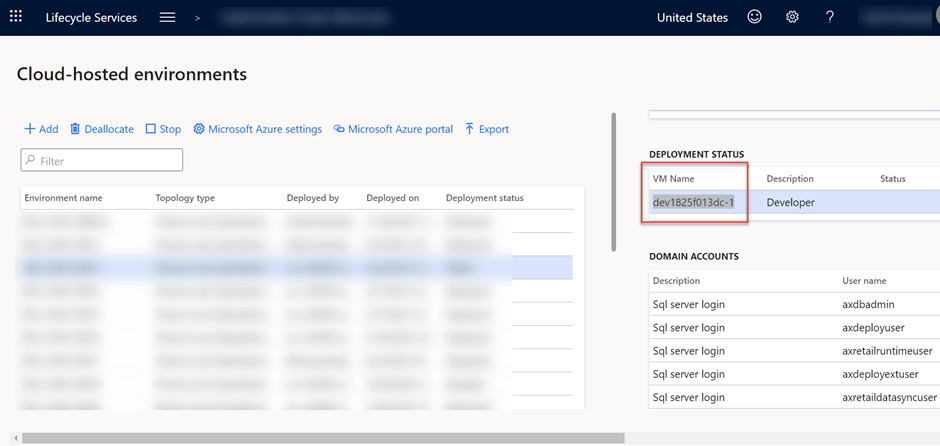
2. Copy the VM Name
3. Go to Azure Portal and Search VM Name.
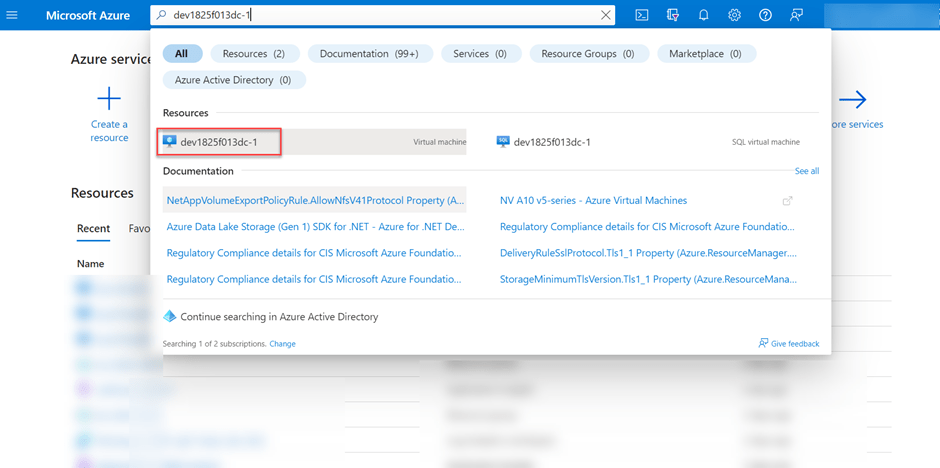
4. Click on Virtual machine found in the Resources.
5. You can see the current size of VM is ‘Standard D8 v3’ which has 8 vcpus and 32 GB memory.

6. In left navigation pane, click on Size button under Settings. All sizes for Azure virtual machine will be available to select.
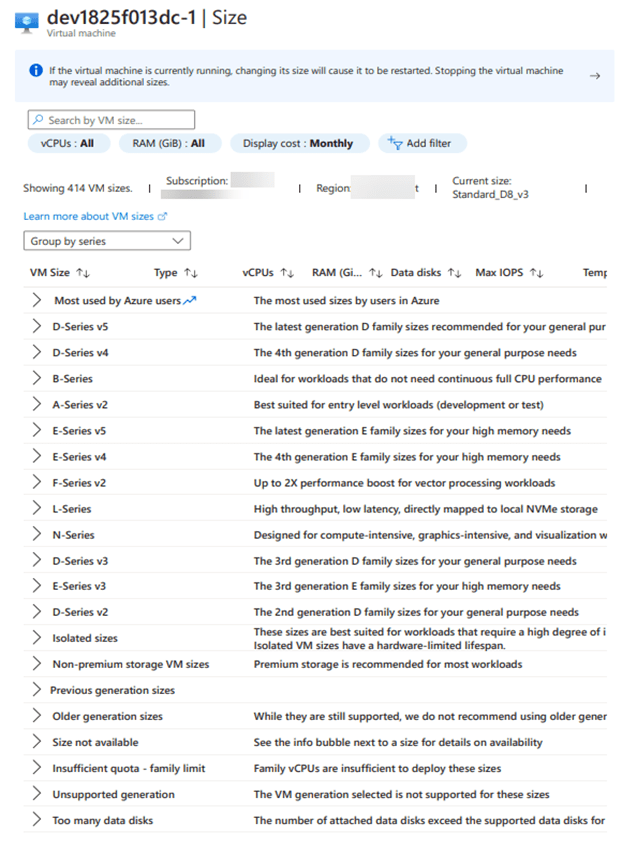
7. If you already know VM size to resize then you can Search for that VM size in the Search bar in above screenshot.
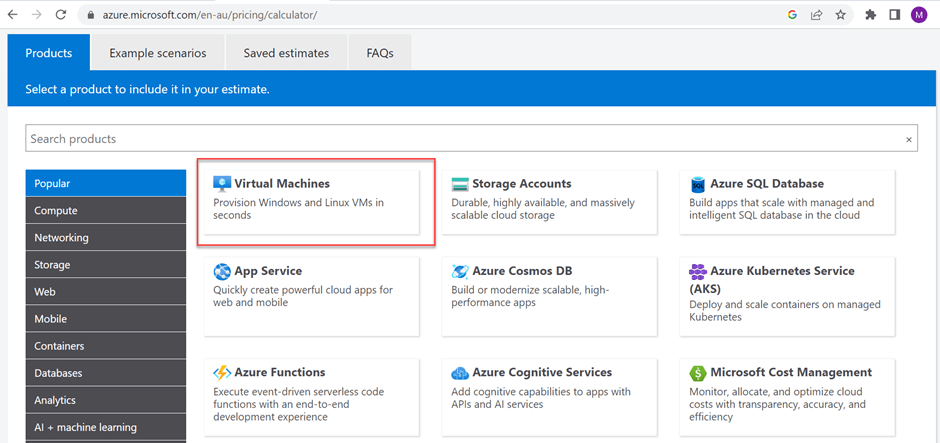
If you don’t know and want to compare the price and configuration, then either you can expand these series or check in Azure pricing calculator.
8. You can select Virtual Machines in Azure Price calculator.

9. Now let’s say we selected VM size D16 v3 to upsize.
10. To Search VM size, we need to select No Grouping as below.
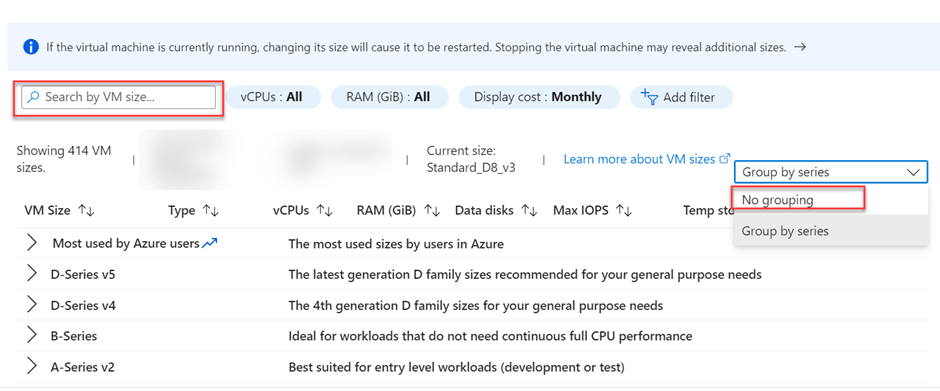
11. Search for D16 or D16_v3, select the VM size and click on Resize button.

It took around 15-20 minutes to resize for me. You can upsize or downsize your VM size. Good luck.
 MOHIT RAMPAL - DYNAMICS 365 F&O BLOG